
Most of your time in the editor is spent on notes, one beat at a time. The left sidebar is for the other kind of edit — the things you set once for a whole section or a whole bar: where the chorus starts, where the music repeats, and when the key, time signature or tempo changes. This guide covers the two structural blocks of the sidebar; the third, Chords, has its own guide.
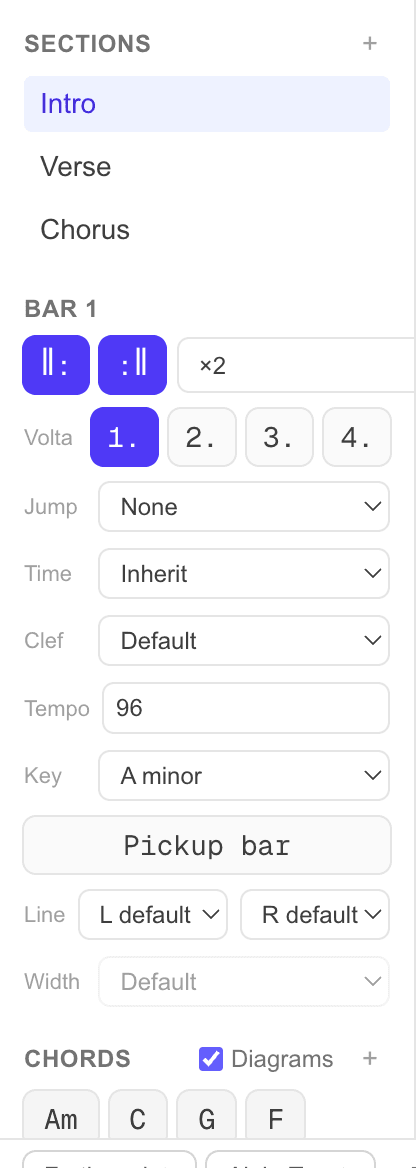
Sections
Sections are the named signposts of your song — Intro, Verse, Chorus, Bridge. They print as a label above the score and double as a table of contents inside the editor.
- Click + to add a section at the bar the cursor is on, then type its name.
- Click a section in the list to jump the cursor straight to that bar — handy in a long song.
- Hover a section to reveal ✎ rename and ✕ delete. The section highlighted in the list is the one the cursor currently sits in.
Bar settings
The middle block is headed Bar N, where N is the number of the bar under the cursor. Everything here applies to that one bar — move the cursor to a different bar and the controls reflect that bar instead. Changes to time, clef, tempo and key take effect from that bar onward until you change them again.
Repeats and endings
- ‖: marks this bar as a repeat start, :‖ as a repeat end. Turn on the end bar and a ×2–×8 menu appears to set how many times the passage plays.
- Volta 1 · 2 · 3 · 4 are the alternate endings — the numbered brackets that let a repeat finish differently each time through. See the walkthrough below.
- Jump adds a navigation sign —
D.C.(da capo),D.S.(dal segno),Coda,Fineand the rest — for songs that don't just play top to bottom.
How volta works. Say a verse plays twice, and only the last bar differs. Put ‖: at the start and :‖at the end of the repeated passage. On the bar that's only played the first time, turn on 1.; on the bar played the second time, turn on 2. The brackets appear above the score, and playback takes the right ending each pass. The buttons are toggles, so a bar shared by the first two passes can carry both 1. and 2.
Key, time, tempo and clef
- Time — change the time signature from this bar (for example 4/4 into a 6/8 bridge). Shorter bars are padded with rests; a bar that no longer fits keeps its notes, and you trim the overflow by deleting trailing rests.
- Clef — switch clef from this bar on (treble, bass, and so on).
- Tempo — set a new BPM from this bar. Type a number and press Enter; clear the field to remove the change and inherit the previous tempo.
- Key — change the key signature from this bar on.
Pickup bar, barlines and width
- Pickup bar (anacrusis) marks a bar that's allowed to be shorter than the time signature — for a song that starts partway through a bar, like a lyric that begins on an upbeat. Turn it on, then press Delete on the trailing rests to shorten the bar to the notes you actually play. Usually only the very first bar needs this.
- Line sets the barline style at the left and right edge of the bar — double, final, dashed, dotted and so on. Useful for marking the end of a piece or a section boundary.
- Widthnudges how much horizontal room this bar takes within its line, relative to its neighbours. It only applies when you've fixed the number of bars per line in song properties (click the score title to open them) — otherwise the layout is automatic and the control stays disabled.
Next: put your chord library to work with chords & diagrams, or get your finished song onto paper with printing & PDF.