
Define a chord once in your song's chord library and you get two things for free: a fingering diagram in the row above the score, and the chord name over every beat where you use it.
Defining a chord
- In the sidebar, find the Chords section and click + Add chord.
- Pick one of the common presets (open and barre shapes for the usual major, minor and seventh chords) or enter the frets yourself. Frets are entered in familiar guitar-chart order, from the 6th (lowest) string to the 1st — use
xfor muted strings and0for open strings. - For shapes higher up the neck, set the first fret so the diagram shows the right position marker.
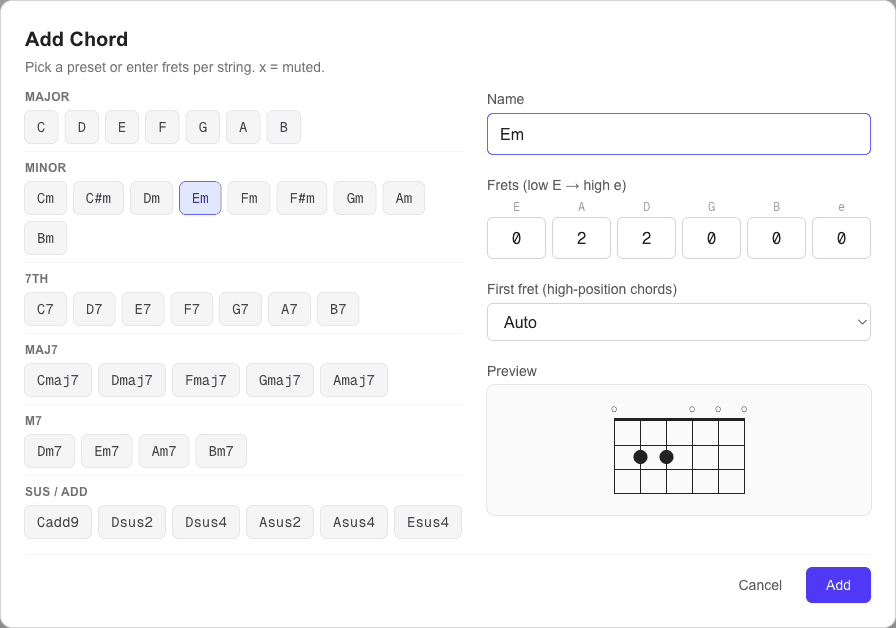
Chord names must be unique within a song. If you need two voicings of the same chord, name them distinctly (for example Em and Em (2)) — the label shown on the score can still read the same.
Using chords in the score
Click a chord chip in the sidebar to insert it at the cursor: the chord's notes are placed on the tab, and the chord name appears above the beat. The diagram row at the top of the score updates automatically to show every chord the song uses.
You can also attach just a chord name to any beat (without inserting notes) — useful for strumming charts where the rhythm section reads names, not tab. Press ⌘Kand search for "Chord name".
Editing and housekeeping
- Rename a chord and every beat that references it updates automatically.
- Delete removes the chord from the library (existing notes stay in the tab).
- If you don't want the diagram row on a particular song — say, a pure solo transcription — untick Diagrams in the sidebar. Chord names above beats stay visible.
Next: give your song words with lyrics mode, or get it on paper with printing & PDF.