
This walkthrough takes you from an empty page to a tab you can play back, print, and save. It should take about five minutes — no account, no install, everything happens in your browser.
1. Create a new score
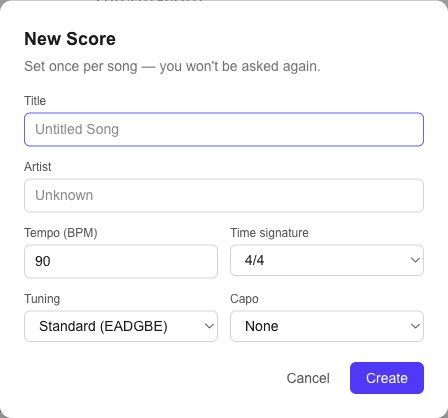
Open the editor and click + New Score in the top-right corner. The start wizard asks for the basics:
- Title and artist — shown at the top of the score (you can change them anytime by clicking the title in the header).
- Tempo and time signature — the defaults are 120 BPM in 4/4.
- Tuning — Standard, Drop D, half-step down, or DADGAD. Fully custom tunings are available later in song properties.
- Capo — if you set one, the notation is written the way capo songs are published: chord shapes stay familiar while playback stays at real pitch.
2. Find your way around
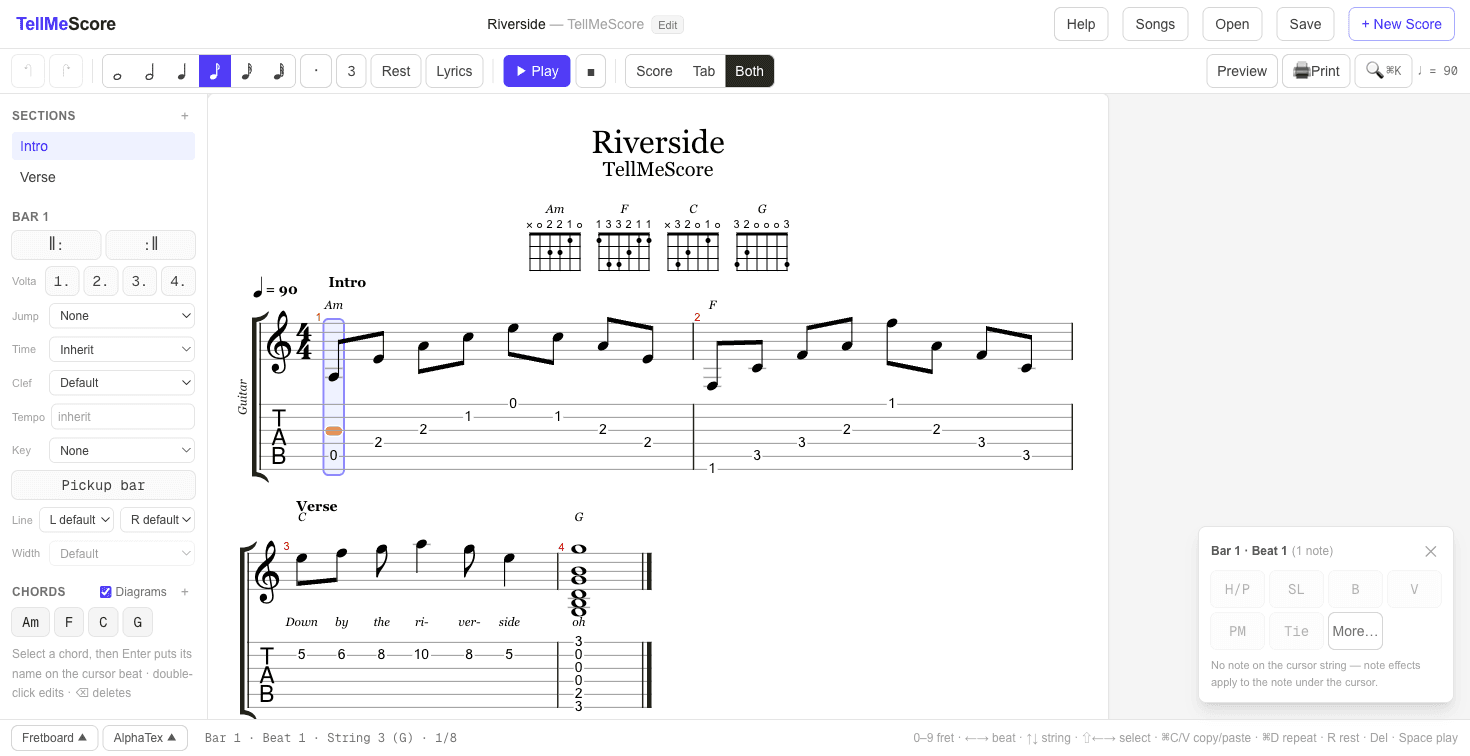
The score shows standard notation and tablature together, always in sync. The gold marker is your edit cursor — it sits on a bar, a beat, and a string. Around the score you'll find:
- the toolbar (top) — note durations, dots, triplets, rests, lyrics mode, playback and printing;
- the sidebar (left) — sections, repeats, key/time/tempo changes, and your chord library;
- the effects panel (bottom-right) — hammer-ons, slides, bends and every other articulation for the note under the cursor;
- the fretboard and AlphaTex panels (bottom, collapsed by default) — a clickable fretboard and the live text representation of your score.
3. Enter your first notes
Click any string in the tab staff to place the cursor, then just type fret numbers:
- Press 0–9 to set a fret. For frets 10 and up, type two digits quickly (for example 1 then 2 for fret 12).
- Move with the arrow keys: ← → step between beats, ↑ ↓ change strings. Moving past the last bar creates a new one automatically.
- Pick a duration on the toolbar (whole to 32nd). Durations are sticky — the one you choose applies to the notes you enter next. The · button dots the current beat, and 3 starts a triplet group.
- R turns the current beat into a rest; Del removes a note.
- Stack notes on different strings at the same beat to build chords.
The editor keeps every bar exactly the right length: when you shorten a note the gap is filled with rests, and a change that would overflow the bar is simply not applied. You never have to count ticks.
4. Add expression
With the cursor on a note, the effects panel offers hammer-ons and pull-offs, slides, bends, vibrato, palm mute and much more — click More… for the full set, or press ⌘K and search any notation element by name. Chords with diagrams have their own guide, and so does lyrics mode.
5. Play it back
Press Space (or the play button) to hear your score with a follow-along cursor. Press Space again to pause, or use the stop button to return to the beginning.
6. Save and print
Your work is autosaved in your browser as you type. Press ⌘S to download the song as a .tmscore.json file, and use the Print button for A4 sheets or a PDF.